Setup
Is it Art, Math, or Computer Science?
Have a look at the image below. How would you describe it? Is is art, math, or computer science?
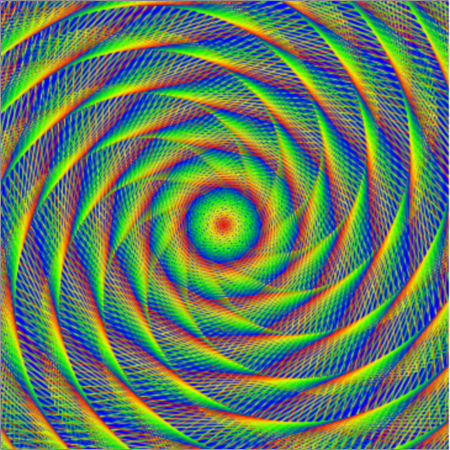
It’s a computer-generated image, but making it requires an understanding of art, maths, and computer science. Let’s see how you too can make images just like this.
Download Greenfoot
To download the Greenfoot Java IDE, visit https://greenfoot.org/downloads and the select the appropriate package for your operating system. Greenfoot is already installed on Raspberry Pis if you happen to be using one, and can be accessed from the Programming menu.
Set Up Scenario
A Scenario is a Greenfoot project. To create one, click on the “Scenario” tab and select “New Scenario”. Name it turtley-amazing.
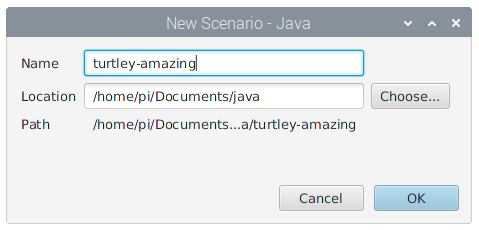
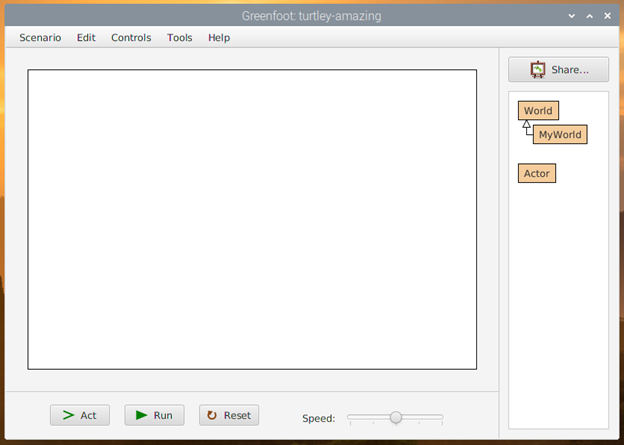
You will see the World and Actor classes on the right. The World is the environment and Actors are objects that we can place in the environment.
Create an Actor
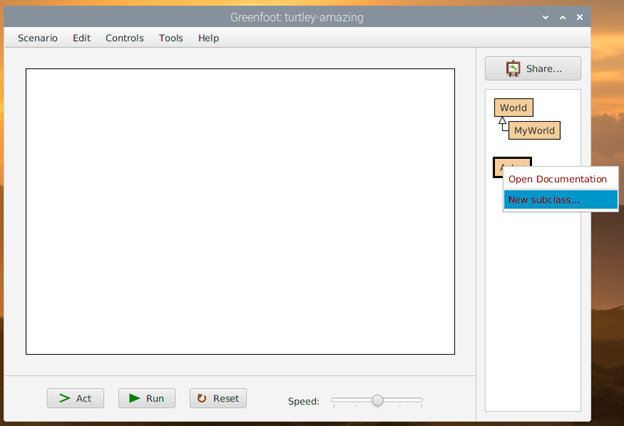
We will create a child of the Actor class that can move around the screen and draw our pictures. Right click the Actor class and select New subclass.
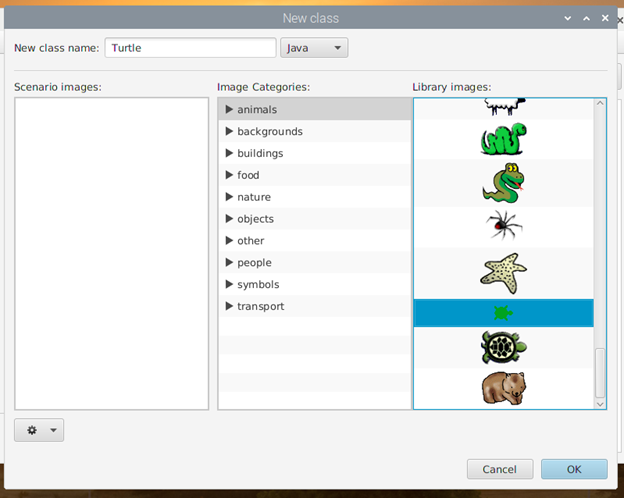
Name the class Turtle and for its image, select animals and find the tiny turtle picture. Then, click OK. This will create the Turtle class where we will put all of our code.
When back on the Scenario, you should see our Turtle class inheriting from the Actor class. Right-click the Turtle class and select Open editor to open the code for editing.
Move the Turtle
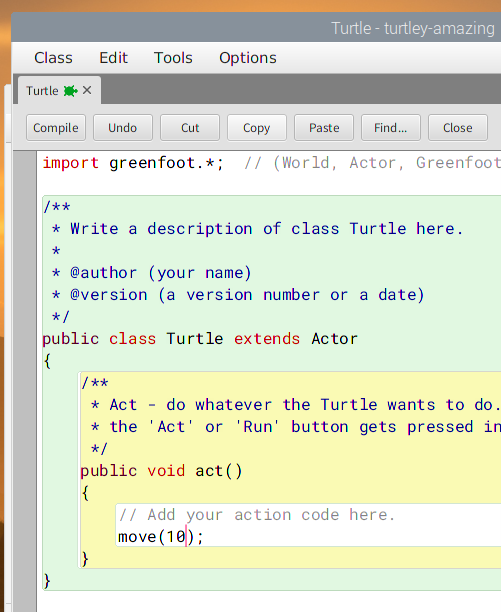
In the code, you will see an act() method. This method is called (executed) every time you press the > Act button on the main interface. We can use the move() method to move our Turtle across the screen like so (modify the act() method to include move()):
public void act()
{
    // Add your action code here
    move(10);
}
Your code will look something like this. Hit the compile button at the top of the screen to translate the Java into bytecode that the Greenfoot environment can execute.
Then you can return to the main interface (the scenario) and do these two things to run your code:
- Instantiate a Turtle object (create an object from the Turtle class and put it in the World). Right-click on the Turtle class and select
new Turtle(). Then click in the World where you want to place it.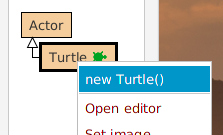
- Click
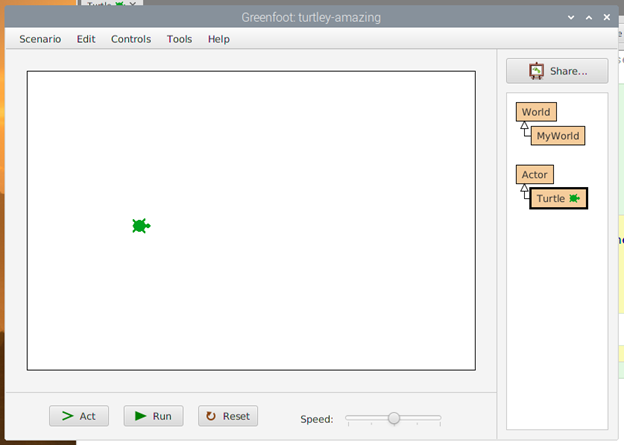
> Actto see the Turtle move 10 pixels, just as our code instructed it to.